
For coaches
Assign Training and Read the Results
Build workouts, plans and sessions once, assign them to any number of athletes, and see who did the work and how it went.
The training toolsLink to this section
Training plans in the sidebar opens five tabs:
- Workouts: reusable sessions built from exercises, with sets, reps and loads.
- Exercises: the library those workouts draw on.
- Plans: workouts laid out across weeks.
- Session library: simpler sessions made of activity blocks (court time, multifeed, a gym block as one lump).
- Results: who did what.
Workouts and sessions are both useful, and neither replaces the other. Use a workout when you care about the sets and the numbers. Use a session when "90 minutes on court, then mobility" is all the detail you need.
The one rule: assigning makes a copyLink to this section
When you assign anything, each athlete gets their own copy. Editing the workout, plan or session afterwards never changes what an athlete has already been given or has already trained. You can keep improving your library without rewriting anyone's history.
Assigned work lands in the athlete's own Training calendar in the app, with your name on it and reminders on. There is no separate inbox for them to check.
ExercisesLink to this section
The library has everything GGAB ships plus whatever you add. Create exercise makes a custom one, and Duplicate & customize starts from one of ours. Yours are private to you. Badminton drills are yours to add, since every coach runs them differently.
Each exercise has a tracking type (sets, reps and load; duration; distance; intervals; and so on). That decides what you prescribe and what the athlete logs.
WorkoutsLink to this section
Press New workout, give it a name, and Add exercise for each movement. For every exercise, set what you want performed: sets, reps, load, rest, tempo, or whatever its tracking type calls for. You can add a note per exercise.
Save & assign opens the assign panel:
- Who is this for? Pick one athlete or several. Only athletes who have accepted your invite appear.
- Scheduled for: the date.
- Note for the athlete (optional).
- Adjust for these athletes lets you change the numbers for this assignment only. The workout keeps what it had. The adjustment applies to everyone in that assignment, so if two athletes need different loads, assign twice.
If one athlete can't be assigned (a pending invite, for example), the rest still go through and we tell you who was skipped and why.
PlansLink to this section
A plan is workouts across weeks. Press New plan, set its length (1 to 52 weeks), and add workouts to each week. Copy week repeats the week before.
When you assign a plan you pick a start date. Week 1 runs from the Monday of that week, and any week 1 session that would fall before your start date is dropped, not back-dated.
Session libraryLink to this section
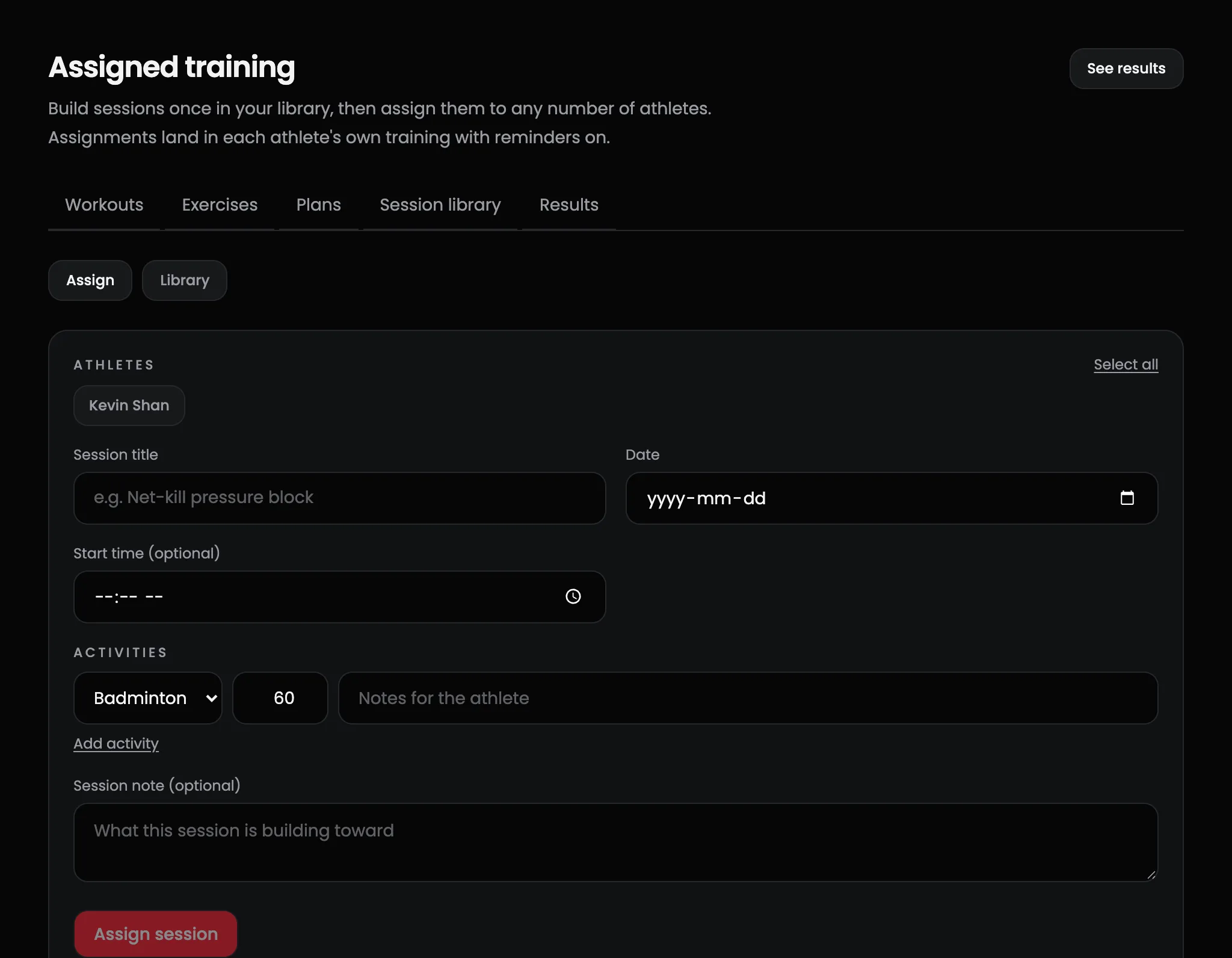
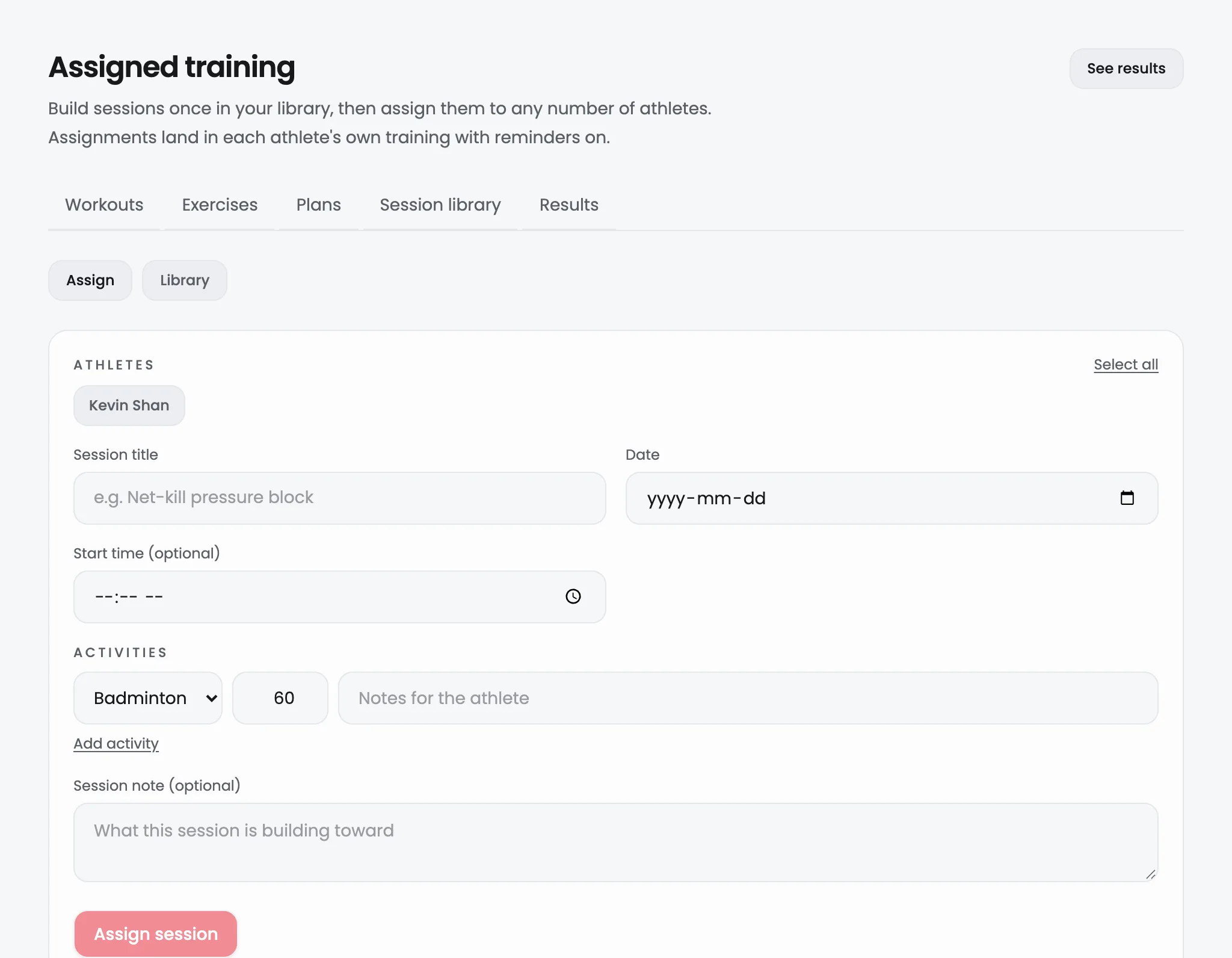
On the Session library tab, Library holds sessions you've built, and Assign sends one out.
- Build a session once with New session: a title, an optional focus, and its activities.
- Press Assign on a library card. It fills in the Assign form so you can pick the athletes and date in one place. Edits you make there apply to that assignment only.
- Or write a one-off session straight into the Assign form.
ResultsLink to this section
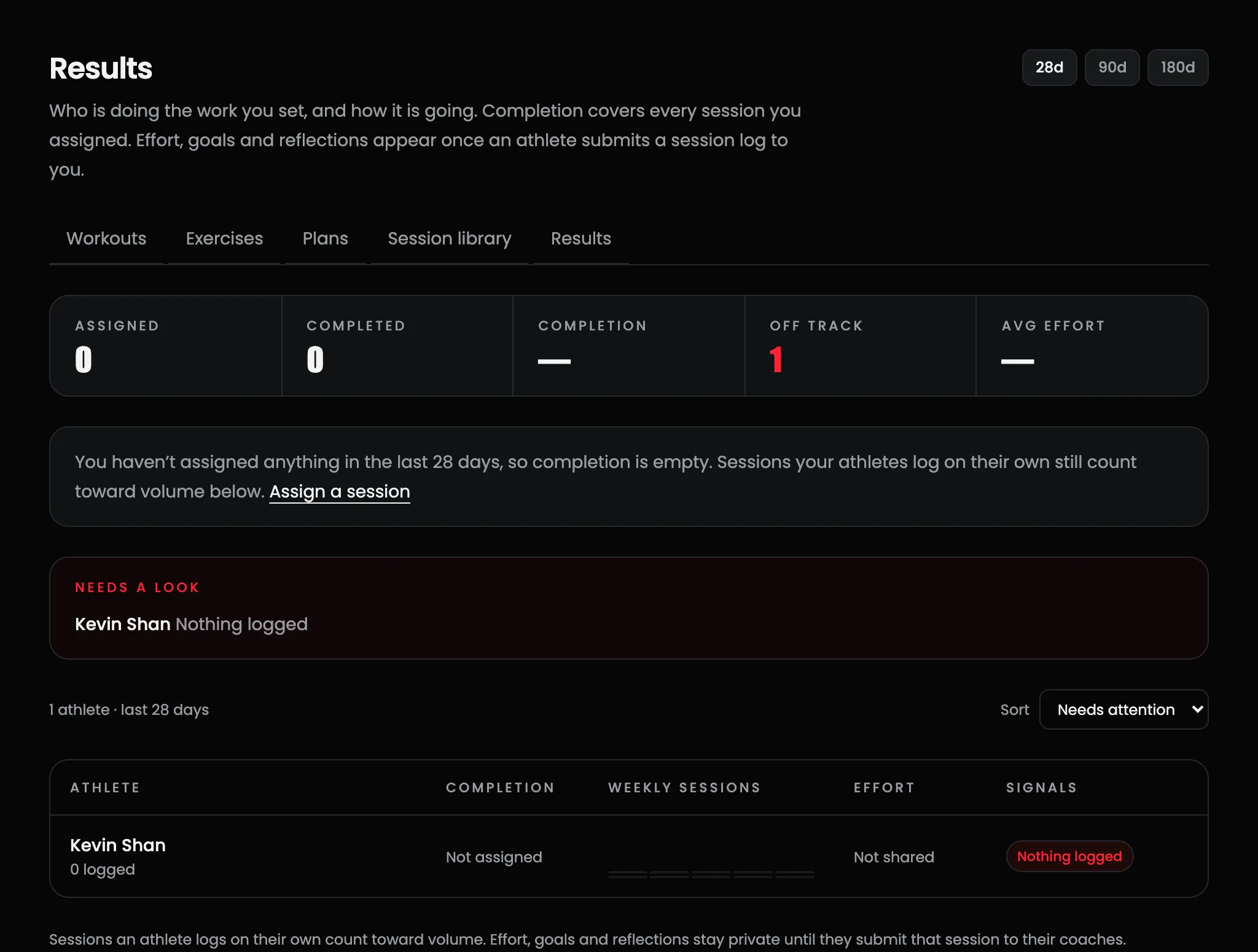
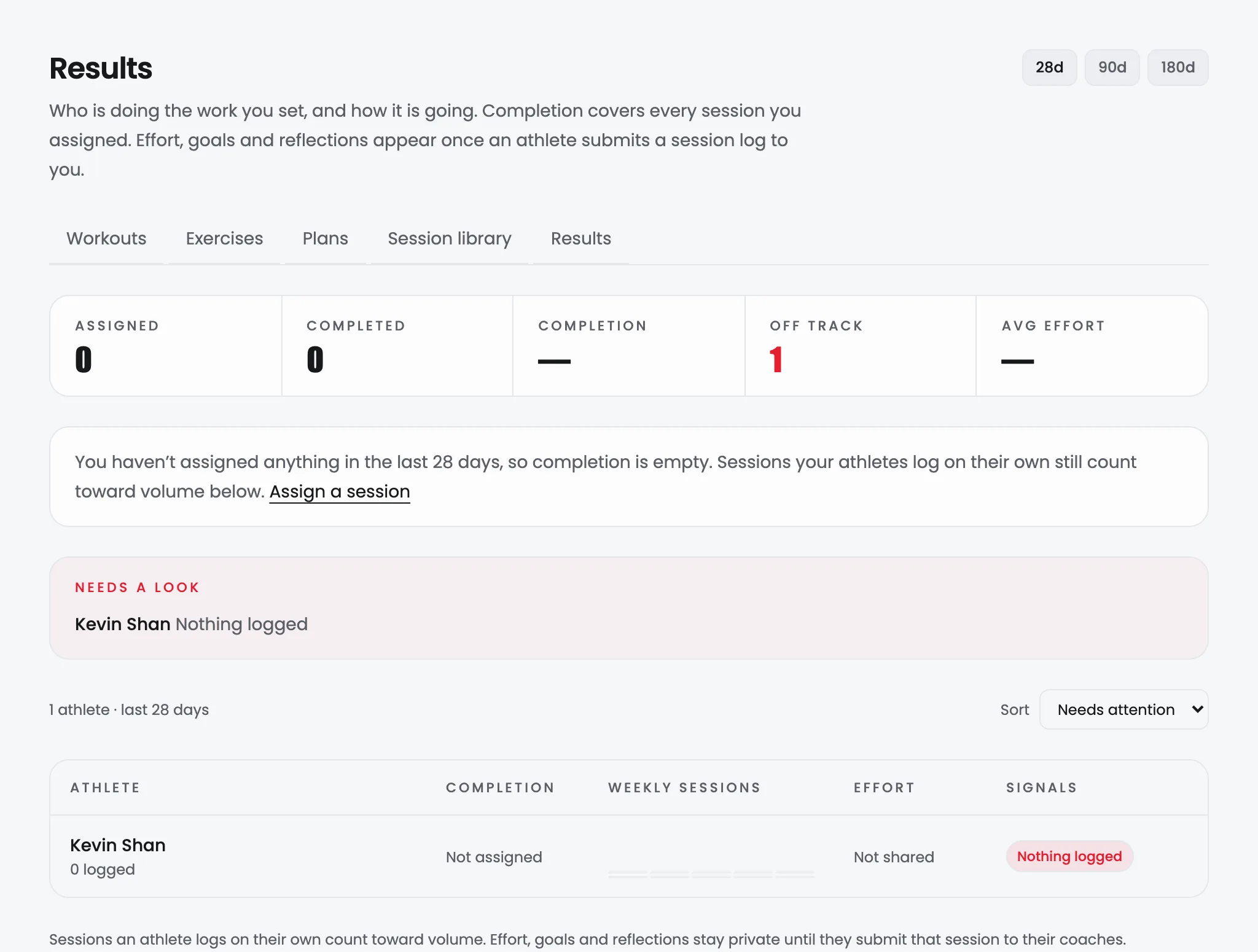
Training results answers two questions: who is doing the work you set, and how is it going. Switch the window between 28d, 90d and 180d.
What you always see, and what depends on the athleteLink to this section
This page is built on a privacy split, and it says so:
- Completion is always visible, because you assigned those sessions. Completion is completed sessions out of everything that has come due. Sessions dated today or later don't count against anyone.
- Effort, goals and reflections appear only for sessions the athlete submitted to you. That covers how hard it felt, minutes, what went well, what they struggled with, energy, mood and any pain. Where they've shared nothing you'll see Not shared.
- Volume counts every session they log, shared or not, assigned or not. So "I assigned nothing, and they're still training four times a week" is something you can see.
Athletes share a session with the Submit to coach button on that session, and they can unshare it.
Needs a lookLink to this section
Athletes are flagged for four reasons, and only these:
- Sessions missed: work you assigned that was skipped or went past its date.
- Nothing logged: no completed session in the window.
- Pain: areas they reported in shared reflections.
- Flat: two or more shared sessions reporting low energy or low mood.
The first two are alerts. Pain and flat are things the athlete told you, shown as they were reported.
The weekly bars use one scale for the whole squad, so you can compare athletes at a glance. A red tick under a week means something you assigned was missed that week. Open a row for recent sessions, recurring struggles and what worked.
Related guidesLink to this section
- Training, the athlete's side of the same tools
- Your roster and athlete pages
- Working with a coach
Still need help?
Browse all guides or send our team a message.