
For coaches
Your Roster and Athlete Pages
Read the Athletes home page, add athletes by email or by name, and use each athlete's page: focus, progress, training, matches, notes and access.
The Athletes pageLink to this section
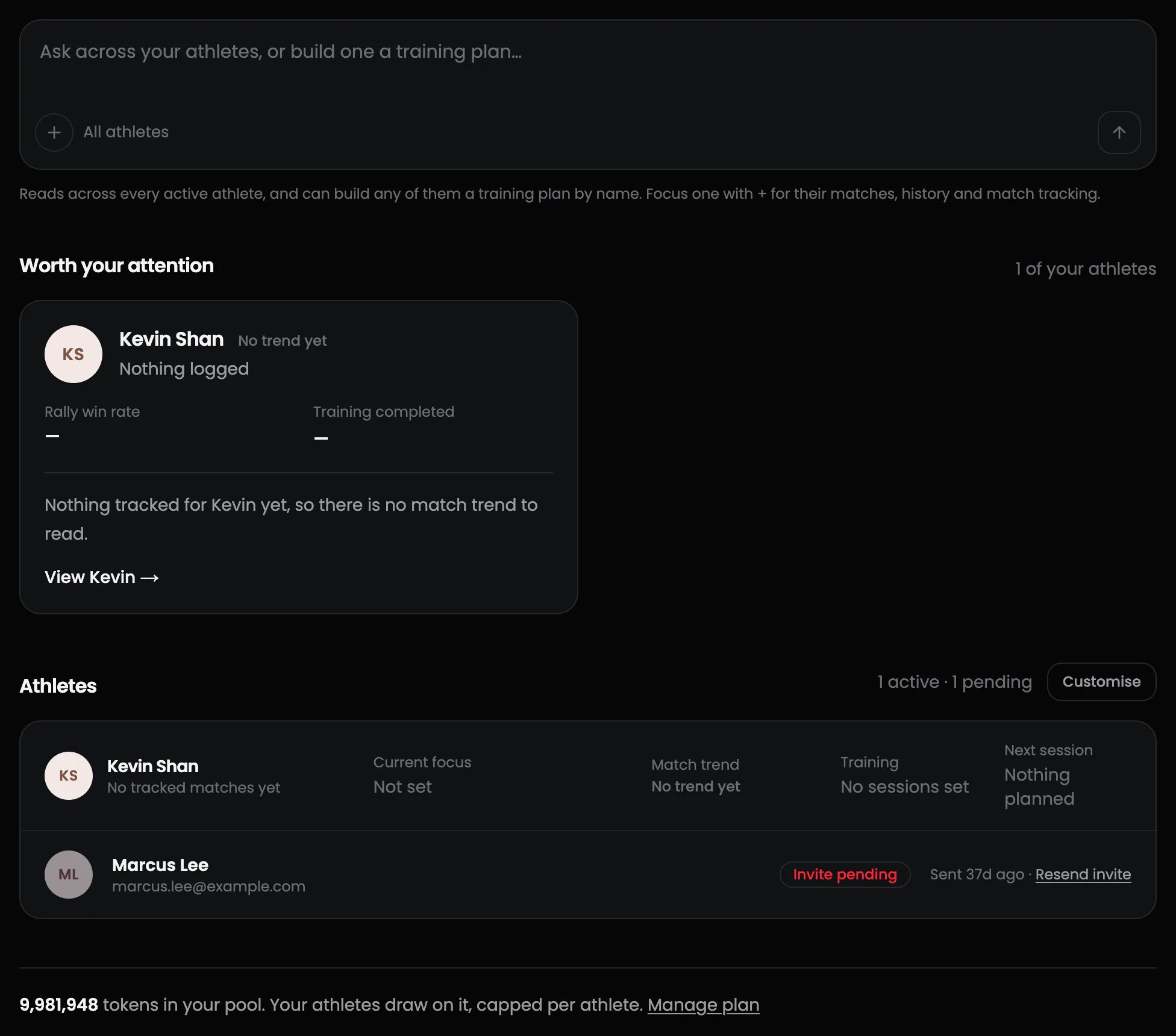
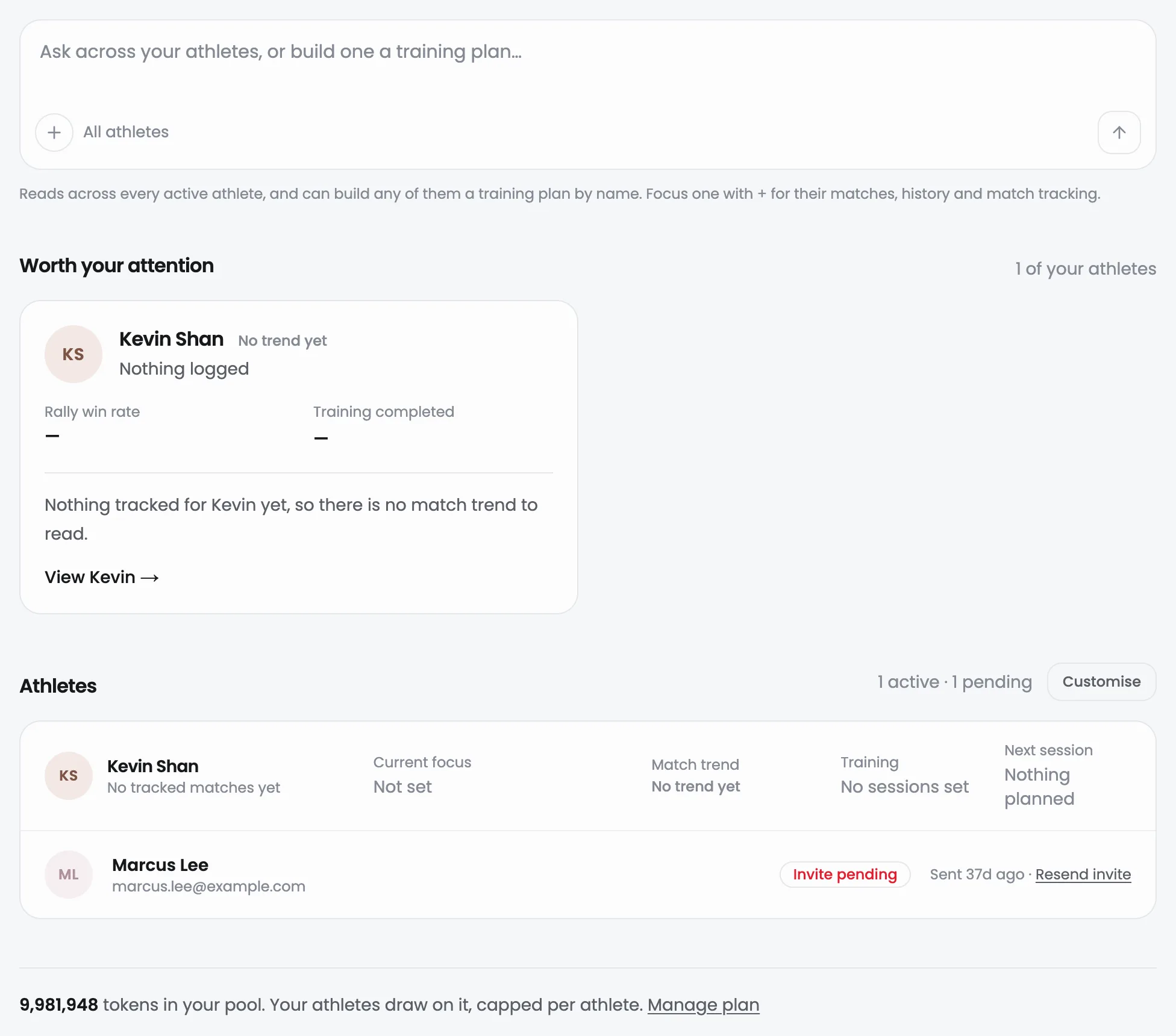
Athletes is your home page. It is built to answer one question: who should I look at today?
- Worth your attention lists athletes with something to act on: sessions not logged, match results slipping, no match in a long while, or training falling behind. When nothing needs you it says Everyone looks on track.
- Recent progress shows who is winning more rallies or doing the work.
- Athletes is the full roster.
- Coming up shows assigned training for the next three weeks.
- The line at the bottom shows how many tokens are in your pool.
How the match trend is worked outLink to this section
The trend is rally win rate over an athlete's last five finished matches compared with the five before. We only show it once each block has at least 40 rallies, and a change needs to be at least 3 percentage points before we call it improving or slipping. An athlete with no finished match in 45 days is flagged. Test matches and unfinished matches don't count.
The sentences under each name are built from those figures. Nothing on this page is written by a model.
Add an athleteLink to this section
Press Add athlete and enter their email. The email decides what happens next, because you can't know whether someone already has a GGAB account.
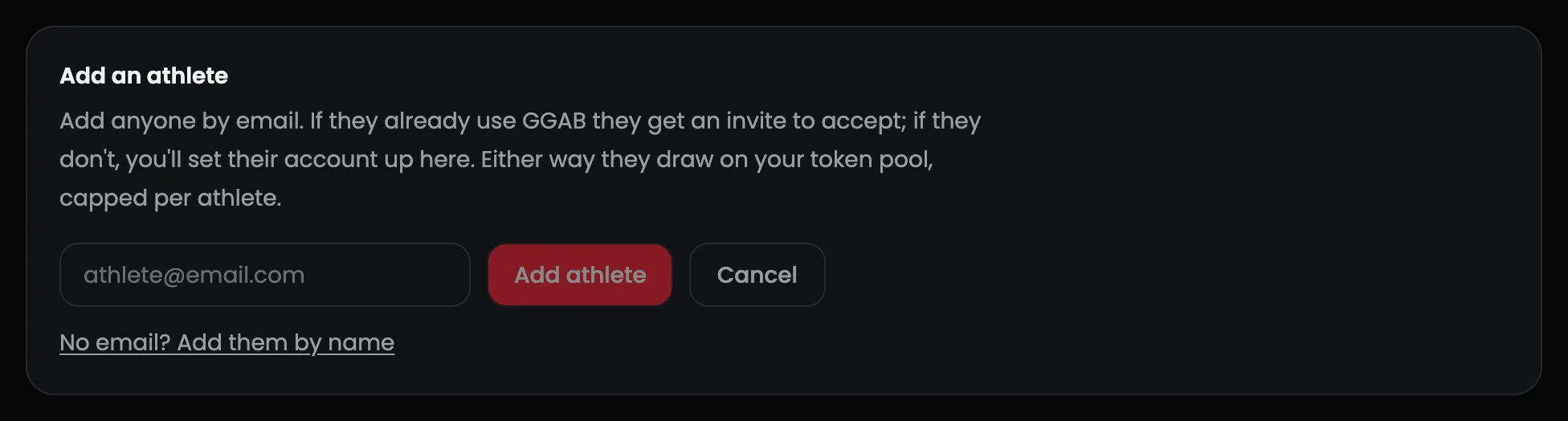
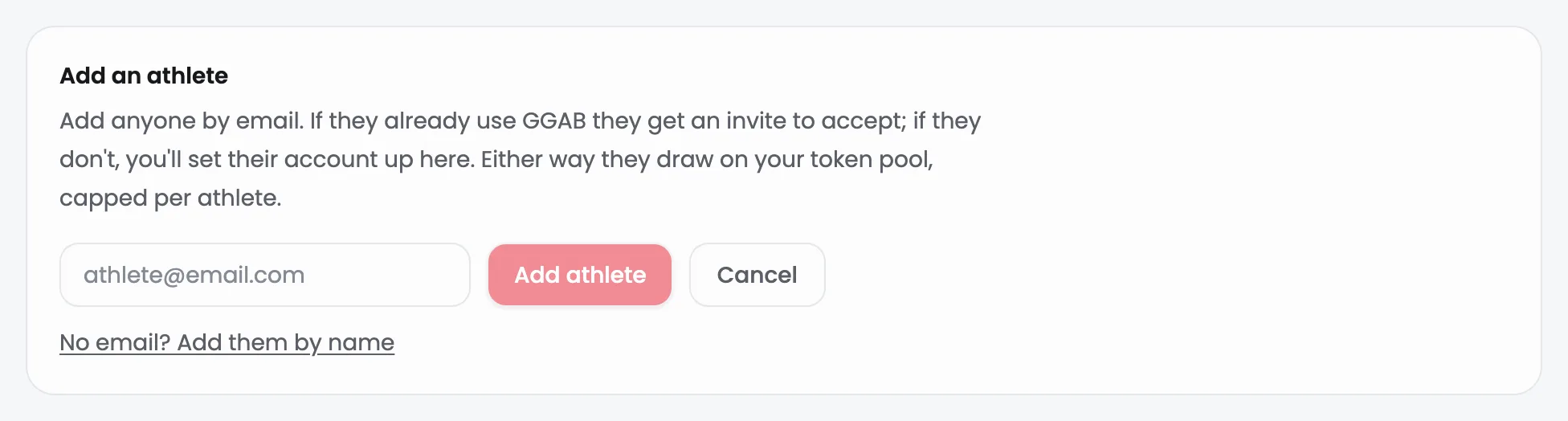
They already use GGAB. They get an invite: a notification in the app and an email. They stay Invite pending until they accept, and you see nothing about them until then. You can resend the invite from their page.
No account uses that email. We ask for their name, create the account, and email them a sign-in link. Their matches and history are theirs from the start.
They have no email (a young player, for example). Choose No email? Add them by name. Nobody can sign into this account, so the data is yours: you can upload and track for them straight away. Their page shows Account is yours. When they're ready, use Hand over this account on their page, attach their email, and they get a sign-in link that makes it theirs, history and all. You stay linked.
Either way, athletes on your plan draw on your token pool, capped per athlete.
An athlete's pageLink to this section
Open an athlete from the roster. The header shows their discipline, how many tracked matches they have, and their trend. From here you can Track a match, Assign training, or open More actions for trends, match breakdown and compare.
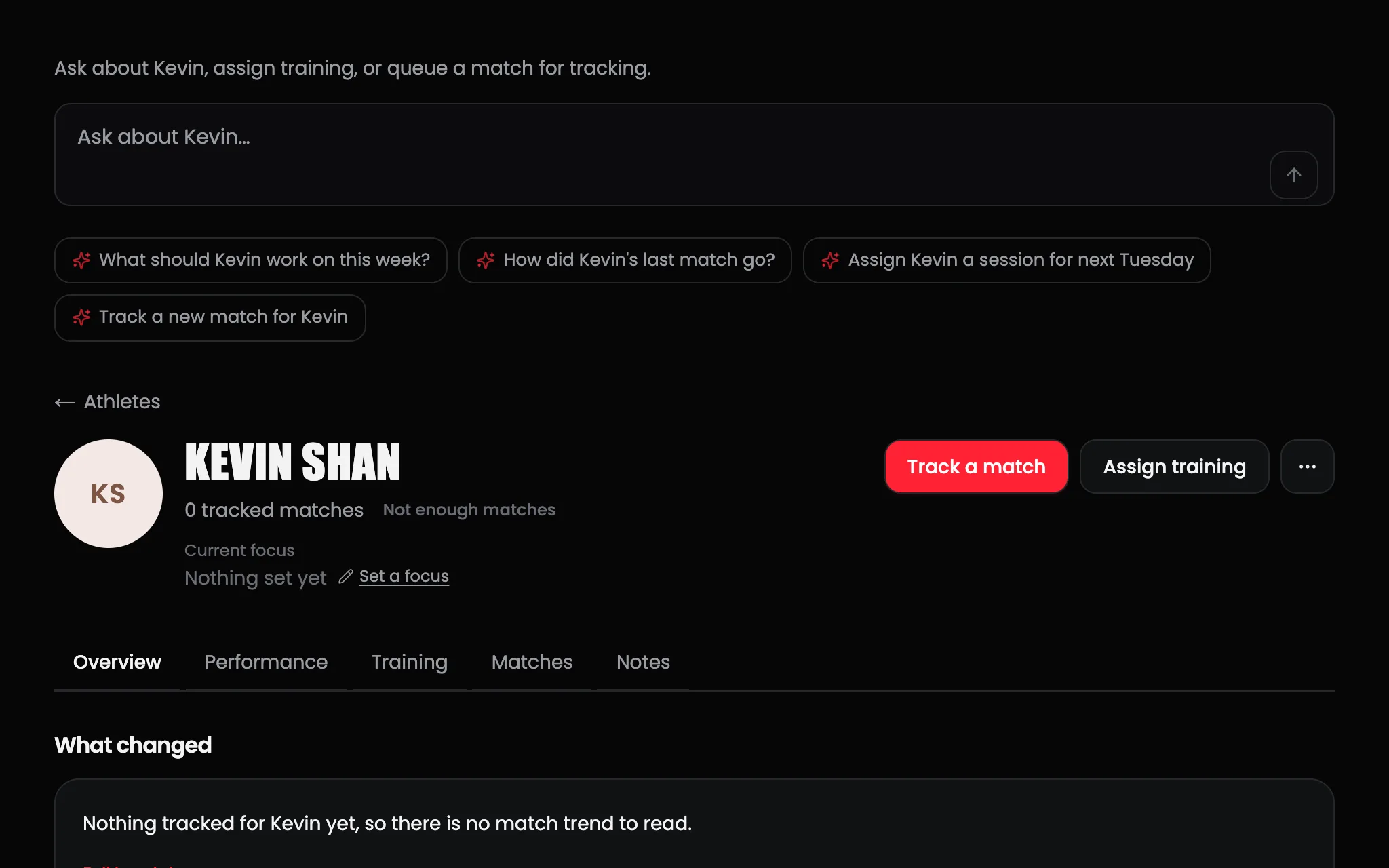
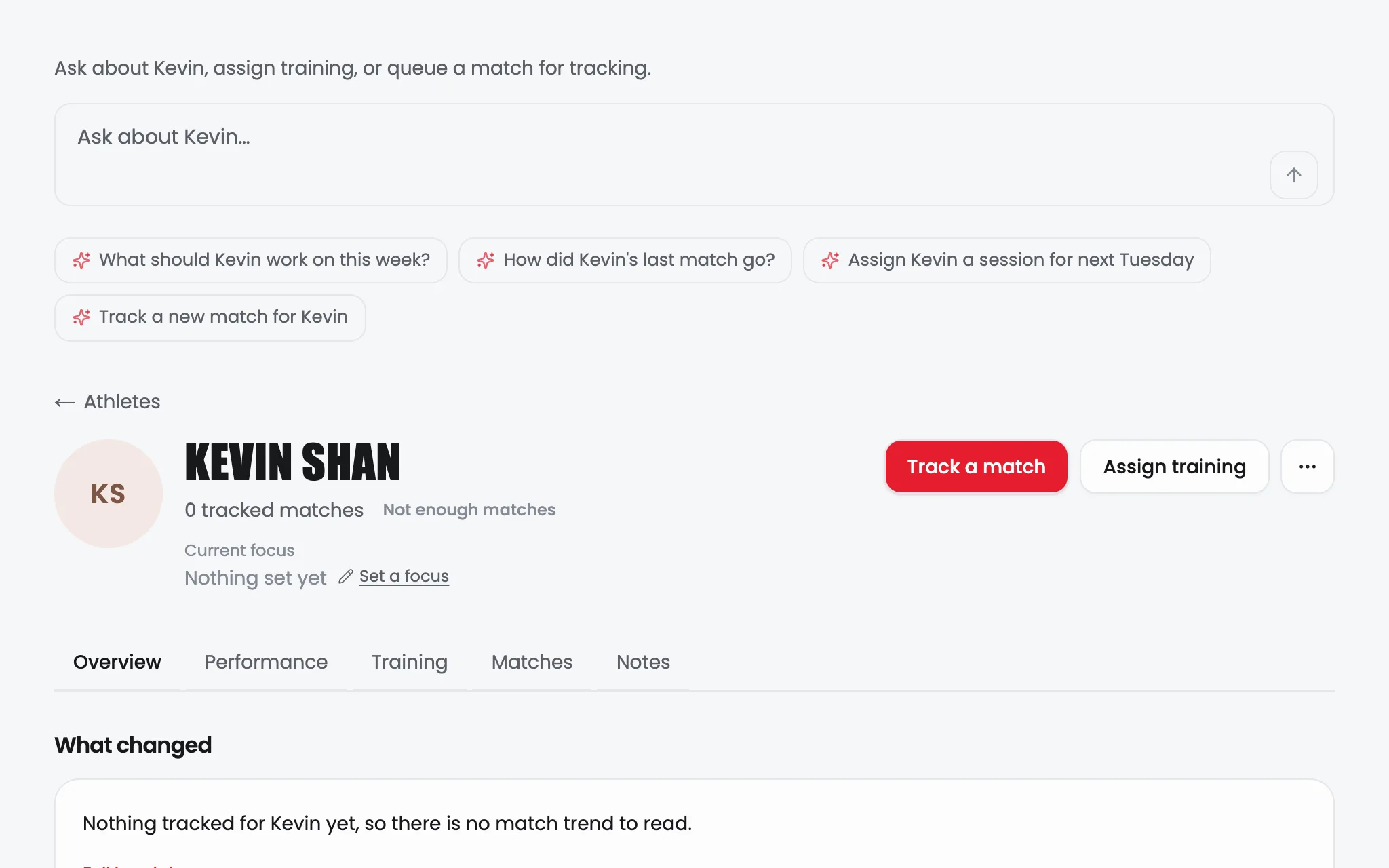
Current focus is one line about what this athlete is working on. Set it yourself, or leave it and we show the focus the athlete chose (marked as their own).
The page has five tabs:
- Overview: What changed (the biggest move in their numbers against the pros for their discipline), Recent progress, Is the training working?, and Plan and access.
- Performance: their goals and how close they are to pro level on each, plus Go deeper links into the same Trends and Match breakdown views they see.
- Training: this week, and a Session diary of everything they logged, whether you assigned it or not.
- Matches: every match, including ones still being tracked. You can withdraw a match that hasn't been tracked yet and the tokens are refunded.
- Notes: your coaching notes, dated automatically.
Is the training working?Link to this section
This card sets how much assigned work an athlete completed against how their matches went over the same period, and gives a plain verdict: Positive progress, Holding steady, Worth a look, or Too early to tell. It shows the two side by side. It doesn't claim one caused the other.
RecoveryLink to this section
If an athlete has chosen to share their wearable data with you, a Recovery card on the Performance tab shows their readiness and the last two weeks of resting heart rate, HRV and sleep. If they haven't, the card isn't there. Sharing is their choice, it is off by default, and they can turn it off again.
Coaching notesLink to this section
Only you see these. The athlete never does. Jot down what you noticed after a session. Six weeks from now, these are what tell you whether something actually changed.
Plan and accessLink to this section
Open Plan and access at the bottom of the Overview tab to:
- See how they're covered: On your plan, Own Pro, or Not covered.
- Change their Monthly token cap, and see how much of it they've used this month.
- Resend a pending invite, or hand over an account you created.
- Remove from roster. They keep their account and all their data. Your plan stops covering them.
If you add someone again after removing them, it starts as a fresh invite, and any wearable sharing they had turned on is off again until they choose it.
Related guidesLink to this section
- Coaching with GGAB
- Track a match for an athlete
- Working with a coach, the athlete's side
Still need help?
Browse all guides or send our team a message.